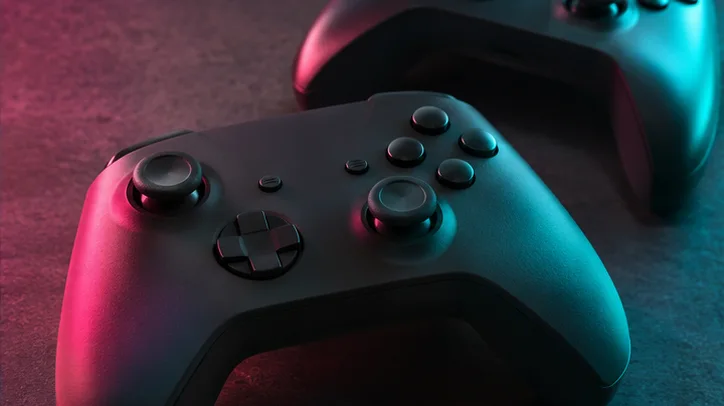
Find subtitles, controller sensitivity, camera and accessibility options.
Start with the result you want
Open Pause, then Settings. If text is hard to read, begin in UI. If objects blend into the environment, start in Display. If movement feels uncomfortable, look in Gameplay and Camera. Change one option at a time so you can tell what helped.
Make dialogue easier to follow
Under UI, check scaling, readability, subtitles and captions. Test changes during a short dialogue scene. Check Audio for narration and volume.
Separate layouts from sensitivity
Control Scheme displays layouts by activity. Controller contains sensitivity and inversion. Use the console control reference to find the right menu. The restore options can help if you lose track of changes.
Check your settings before a long session
Test subtitles in a dialogue sequence and camera sensitivity through a short drive. Write down the original values if you plan to compare multiple changes.
Frequently asked questions
Where do I adjust subtitles and controller sensitivity in GTA 6?
Open Pause, then Settings. Use UI settings for subtitles and related display options, and Controller settings for sensitivity and inversion.